

How to Add Google Search Console to WordPress Using Rank Math
- June 30, 2026
Introduction
If you’ve just launched a WordPress website, connecting it to Google Search Console (GSC) is one of the first things you should do. Without it, you’re flying blind, you won’t know which keywords bring traffic, which pages Google has indexed, or what technical errors are hurting your rankings.
The good news: if you’re using Rank Math SEO, the setup takes less than 5 minutes. There are two methods, a quick manual one using an HTML tag, and a more powerful auto-connect option through Rank Math’s Analytics module. This guide covers both so you can pick the right one for your setup.
Why Connect Google Search Console to WordPress?
Google Search Console is a free tool from Google that gives you direct data about how your site performs in search. Once connected, you can:
- See which search queries bring users to your site
- Identify pages that aren’t indexed
- Get alerts for crawl errors and security issues
- Submit your XML sitemap directly to Google
- Monitor Core Web Vitals and mobile usability
When you connect GSC through Rank Math, all this data becomes visible directly inside your WordPress dashboard, no tab-switching needed.
What You Need Before You Start
Before following the steps below, make sure you have:
- Rank Math SEO installed and activated (free version works for both methods)
- A Google account with access to Google Search Console
- Admin access to your WordPress website
- Your website’s correct URL (check Settings → General → Site Address in WordPress)
If you haven’t set up Rank Math yet, install it from Plugins → Add New, search “Rank Math SEO,” and activate it. The setup wizard will guide you through the basics.
Method 1: Manual Verification via HTML Tag (Rank Math Webmaster Tools)
This is the fastest method. It takes under 3 minutes and doesn’t require connecting a Google account to Rank Math.
Step 1 – Add Your Site to Google Search Console
- Go to Google Search Console and sign in.
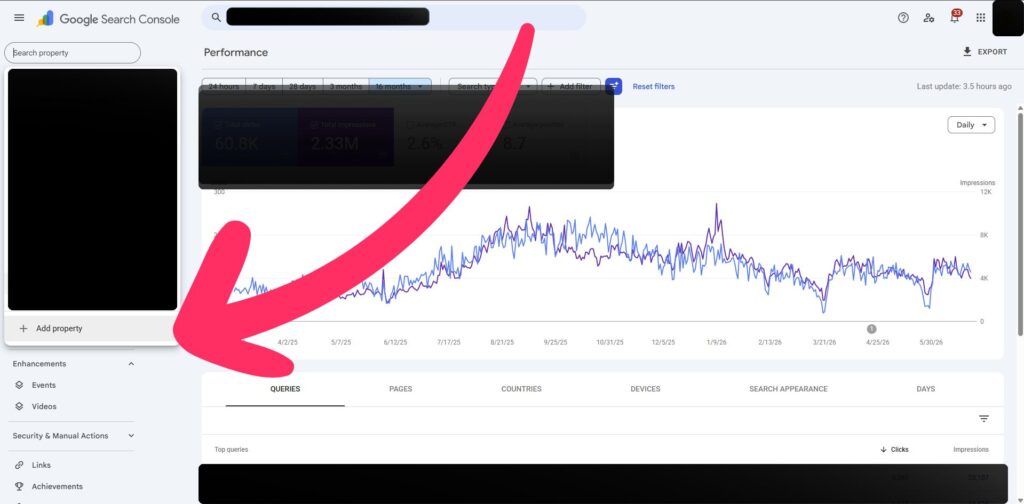
- Click Add Property in the top-left dropdown.
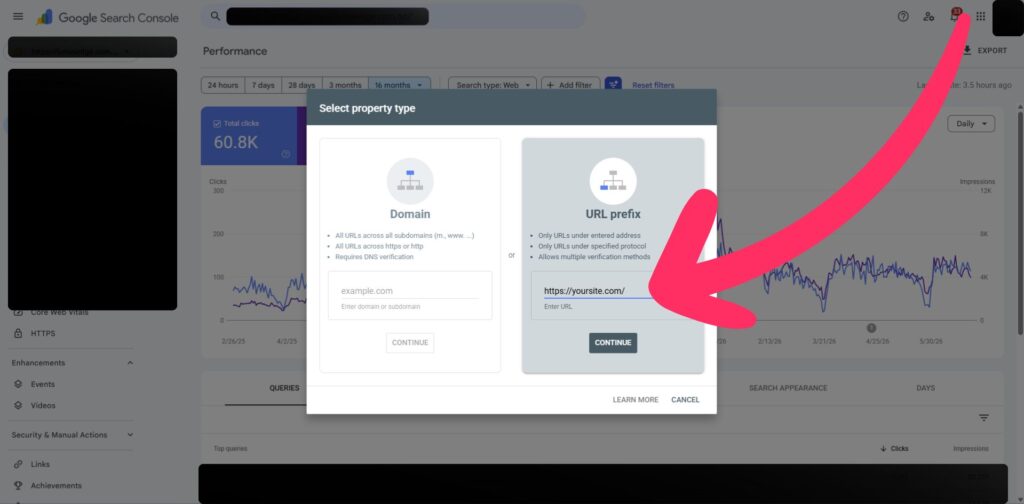
- Select URL Prefix and enter your full website URL (e.g.,
https://yoursite.com). - Click Continue.
Important: Use the exact URL format your site loads on — including
https://and with or withoutwww— to avoid a mismatch.
Step 2 – Copy the HTML Verification Tag
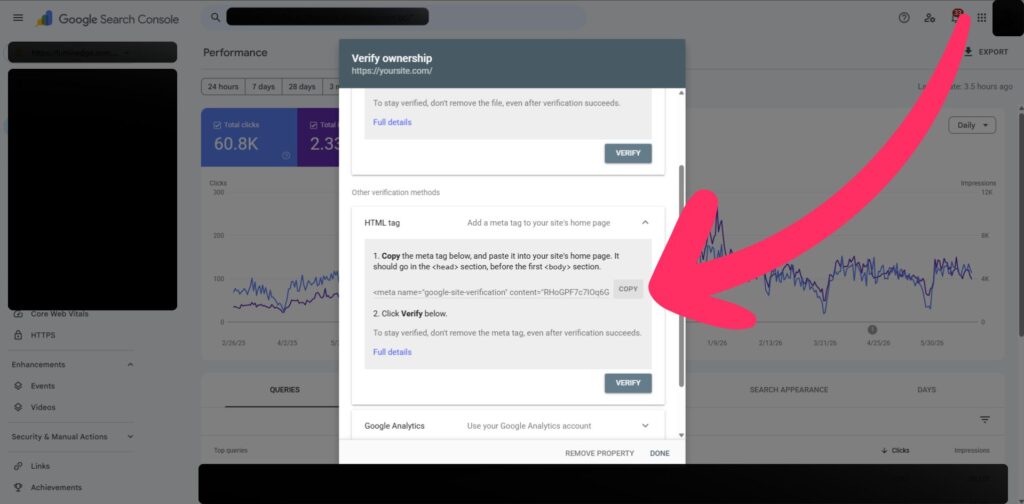
On the verification screen, click HTML tag to expand that section. You’ll see a meta tag that looks like this:
<meta name="google-site-verification" content="XXXXXXXXXXXXXXX" />
Click Copy to copy the entire tag (or just the value inside content="...").
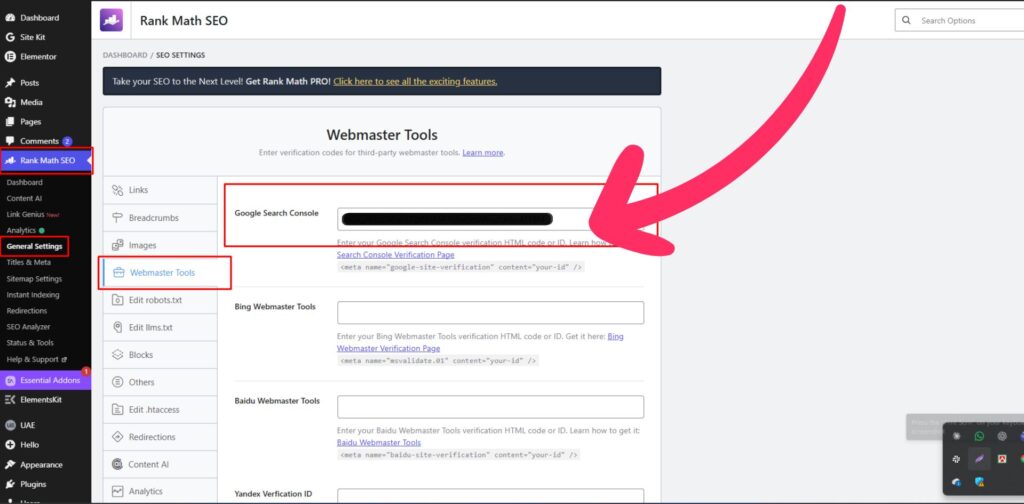
Step 3 – Paste It into Rank Math Webmaster Tools
- In your WordPress dashboard, go to Rank Math SEO → General Settings.
- Click the Webmaster Tools tab.
- Find the Google Search Console field.
- Paste the copied HTML tag (or just the verification code — Rank Math accepts both).
- Scroll down and click Save Changes.
Rank Math automatically adds the meta tag to your site’s <head> section — no code editing needed.
Step 4 – Verify in Google Search Console
Go back to Google Search Console and click Verify. Within a few seconds, you should see a green confirmation message: “Ownership verified.”
If verification fails, clear your site cache (via your caching plugin or hosting panel) and try again. The tag needs to be visible on your live homepage for Google to detect it.
Method 2: Auto-Connect via Rank Math Analytics Module
This method does more than just verify your site — it pulls GSC data (clicks, impressions, keyword rankings) directly into your WordPress dashboard. It requires a Rank Math account (free) and takes about 5 minutes.
Step 1 – Enable the Analytics Module
- Go to Rank Math SEO → Dashboard in WordPress.
- Find the Analytics module (it may be off by default).
- Toggle it on so it turns green.
Step 2 – Connect Google Services
- Navigate to Rank Math SEO → General Settings → Analytics.
- You’ll see a large Connect Google Services button in the center of the page.
- Click it. If you haven’t created a free Rank Math account yet, you’ll be prompted to do so first — it’s quick and free.
- A Google sign-in window will appear. Choose the Google account connected to your Search Console.
- Review the permissions Rank Math is requesting (it needs read access to your GSC data) and click Allow.
- Google will generate an authorization code. Copy it, paste it back into the Rank Math field, and click Authorize.
Rank Math does not store your Google data on its servers — it only acts as an intermediary to display your data inside WordPress.
Step 3 – Select Your Search Console Property
After authorization, Rank Math automatically detects all GSC properties linked to your Google account. In the Search Console section under Analytics settings, select your website from the Site dropdown.
Pro users can also filter data by country at this step.
Step 4 – Save and Confirm
Scroll down and click Save Changes. Rank Math will also automatically submit your XML sitemap to Google Search Console — one less step for you.
To confirm everything worked, go to Rank Math SEO → Analytics and check that GSC data (clicks, impressions, average position) starts appearing. Data typically populates within 24–48 hours.
Which Method Should You Use?
| Method 1: HTML Tag | Method 2: Auto-Connect | |
|---|---|---|
| Time | ~2 minutes | ~5 minutes |
| Requires Rank Math account | No | Yes (free) |
| Shows GSC data in WordPress | No | Yes |
| Auto-submits sitemap | No | Yes |
| Best for | Quick verification only | Full analytics integration |
Recommendation: If you want to monitor search performance from your WordPress dashboard without logging into Google Search Console separately, use Method 2. If you just need your site verified quickly, Method 1 is sufficient.
What Happens After Verification?
Once Google Search Console is connected, here’s what to expect:
- Indexing data: Google may take 24–72 hours to start showing impressions and clicks data.
- Sitemap submission: If you used Method 2, your Rank Math sitemap is already submitted. If you used Method 1, submit it manually: in GSC, go to Sitemaps and enter
yoursite.com/sitemap_index.xml. - Crawl errors: Check the Coverage report in GSC weekly for pages Google can’t access.
- Performance tab: This is where you’ll find keyword data — which search terms trigger your pages and how often users click through.
Don’t expect data immediately. A new site can take several weeks to accumulate enough search activity to display meaningful metrics.
Conclusion
Adding Google Search Console to WordPress through Rank Math is straightforward whether you choose the quick HTML tag method or the full Analytics module integration. For most site owners who want actionable search data inside WordPress, Method 2 (auto-connect) is worth the extra two minutes. Once it’s set up, you’ll have keyword rankings, click data, and indexing status all in one place — without ever leaving your dashboard.
SOURCES CITED:
Rank Math Official KB: https://rankmath.com/kb/google-site-verification/
Rank Math Official KB: https://rankmath.com/kb/connect-your-google-account/
Frequently Asked Questions (FAQs)
Both methods work with the free version of Rank Math. The Pro version adds country-level filtering for GSC data and more advanced analytics features, but verification and basic data integration are available for free.
First, clear your WordPress cache (via your caching plugin or hosting provider). Then check that your site is loading on the exact URL you entered in GSC (with or without www, and https vs http). Return to GSC and click Verify again.
Yes. Having the HTML tag in Webmaster Tools doesn't conflict with the Analytics module connection. In fact, having both provides a verification backup — if one method fails, GSC falls back to the other.
Most users see initial data within 24–48 hours. If your site is new, it may take longer since Google needs time to crawl and index your pages first.
No — Google Search Console and Google Analytics are separate. You can connect just GSC via Rank Math without GA. If you do want GA data too, Rank Math's Analytics module supports connecting it in the same settings area.
Share
Article by

Mehedi Hasan Juwel
Digital Marketing Strategist